Metrics
Measuring movement
A metric is a number computed from the estimated pose on every frame. Most metrics need no code — build them in the Metric Maker. When you need something bespoke, a short Python script allows for endless customisation.
Creating
The Metric Maker
Open the Metric Maker from the main tab bar. It builds two kinds of metric from the skeleton:
- Angle — the angle between two body segments, or between a segment and an axis. Optionally signed (clockwise / anticlockwise) relative to the projection plane.
Give the metric a name and tags, pick its joints or segments, and it starts evaluating live. Click any metric row — here or in the capture spreadsheet — to draw it as a 3D gizmo on the live skeleton (an angle arc coloured by its live range).
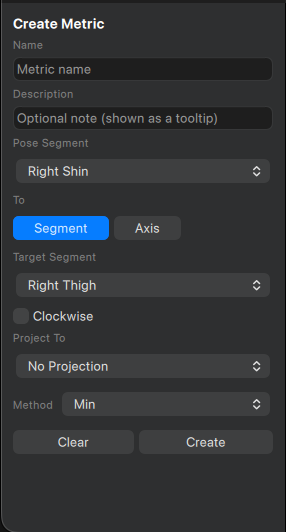
- Name —Name of the metric that will display in capture spreadsheet.
- Description —Description of the metric that's a column here or as a tooltip within a session.
-
Pose Segment —
- Bicep (left/right)
- Forearm (left/right)
- Hip (left/right)
- Thigh (left/right)
- Shin (left/right)
- To — A selection of either another segment or a world-axis.
-
Axis —A world axis to measure from
- X +-
- Y +-
- Z +-
- Clockwise —Flip the direction of measurement
-
Project To —A plane to project on to.
- Saggital
- Transversal
- Frontal
- None
-
Method —Sliding-window method to use for final value
- Mean
- Min
- Max
- Raw
One can choose to measure the angle between two segments or an axis-to-segment.
Defining
Ranges, tags & windowing
Every metric carries three shared settings:
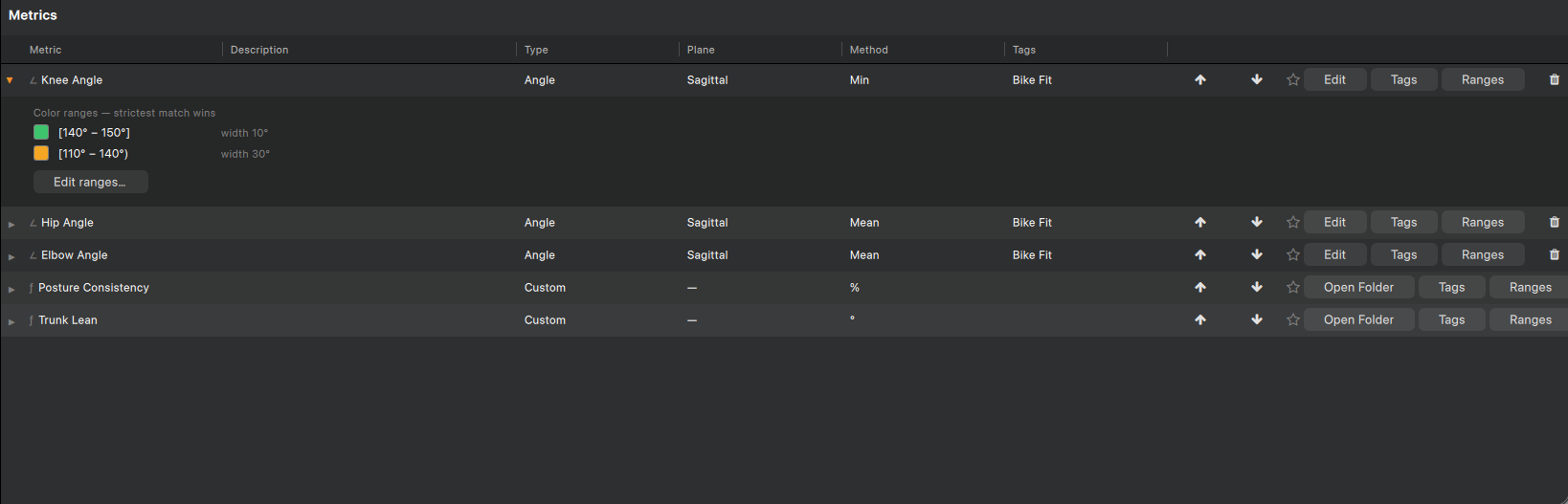
- Ranges — colour bands with a min and max stop (each inclusive or exclusive) and a colour. The widest matching band wins; a value outside every band reads red. This is how a metric shows "in target" at a glance.
- Tags — free-form labels for filtering long metric lists within a session.
-
Windowing method — how
the per-frame value is smoothed for display:
Raw, or a rollingMean/Min/Maxover a window (default 5 seconds). - Edit — Always able to edit and tweak any metric
- Ordering — Decide on the order metrics show up here and in the session spreadsheet
- Favorite —Favorite a metric for it to be promoted to the top of the session result view within the client screen. Always be able to see the metrics you care about as they change over time.
Projection planes
A single 2D camera captures one anatomical plane. Set a metric's projection plane (Frontal, Sagittal, or Transverse) and PoseLab flattens the joints onto that plane before measuring — so the angle or distance reflects the intended view and is comparable across cameras. Leave the plane unset to measure in raw 3D when a 3D pose source is present. For camera setups the projection is a requirement as only 2D values will be calculated, bring your own hardware to provide 3D poses and unlock more functionality.