Capture
Session
The core of the day. The session screen brings together a series of configurable panels arranged how you wish to capture, review, and monitor the day's session.
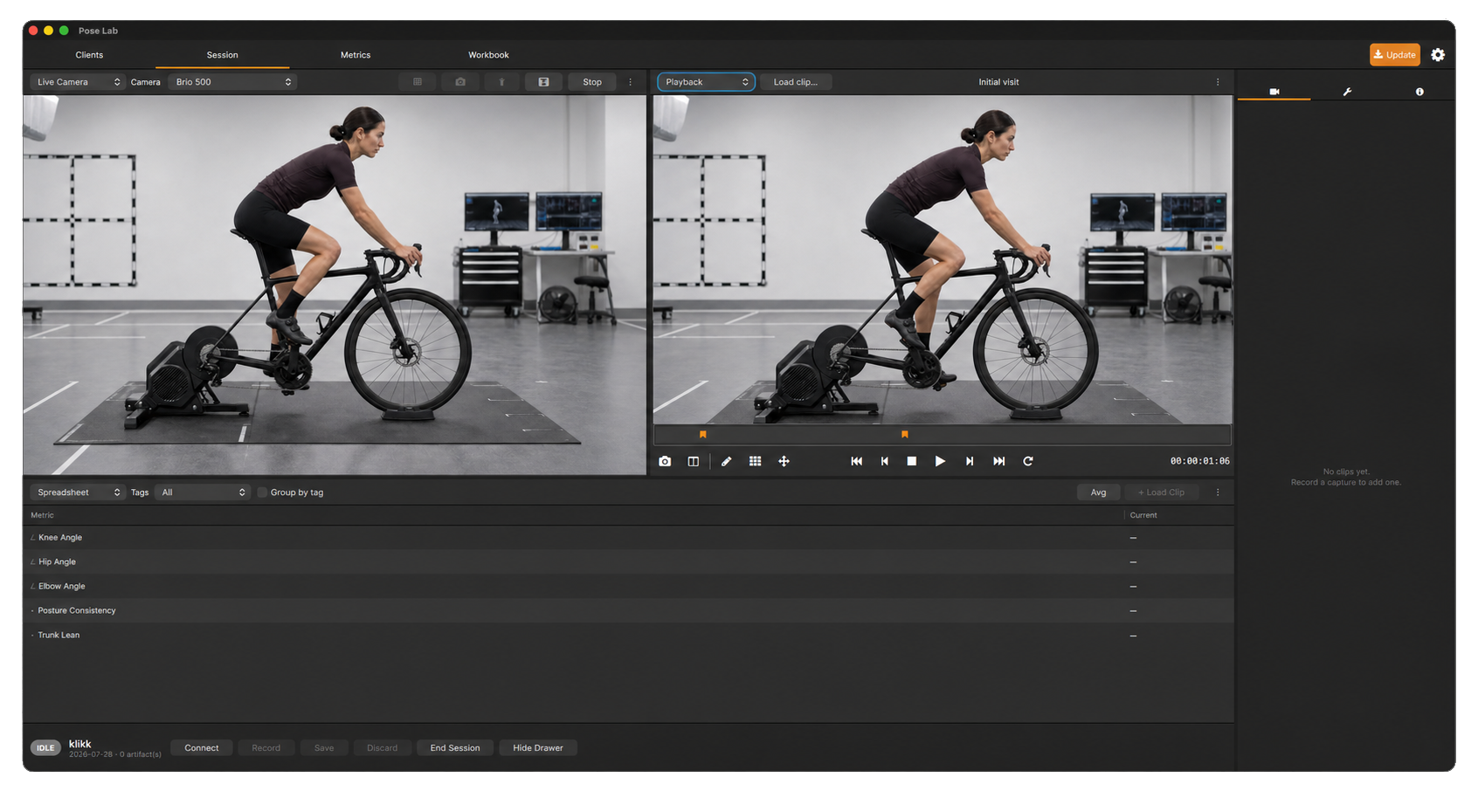
Capturing
Live Session
The core of the day. The session screen brings together a series of configurable panels arranged how you wish to capture, review, and monitor the day's session.
-
Configurable Panels
-
Clip & Tool Drawer
-
Capture bar
1. Panels & Layout
Multiple panels can be arranged in any number of ways to meet any need. Below is an overview of each panel type and from the upper-right menu within any panel one may split (horizontally/vertically) the layout or close a panel.
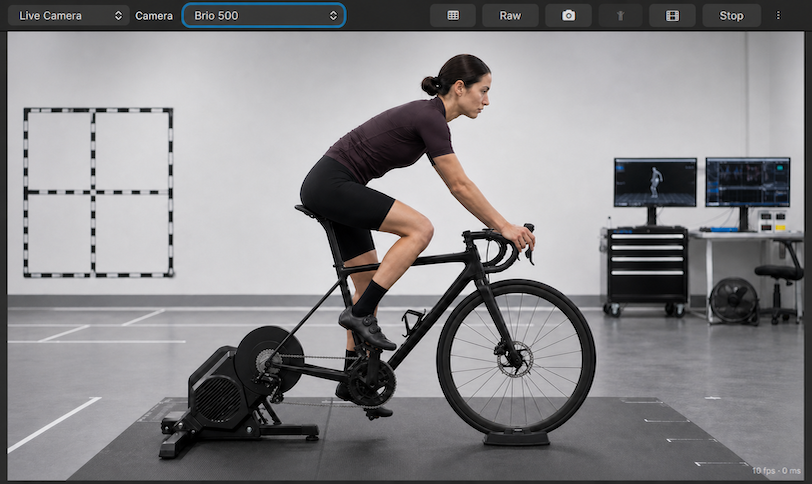
Panel Types- Live Camera(s) Multiple cameras can be shown, 1 per panel. Metrics will be displayed int the view if they match the camera orientation and are selected in the spreadsheet. If a pose provider plugin has been loaded the pose estimation for the camera view will be disabled and this panel will become a standard camera stream, archivable to the session.
- Camera Selector drop-down
- Pose estimation metric display (Avg/Raw)
- Snapshot
- Enable/Disable Pose estimation
- Stop
- Panel Configure
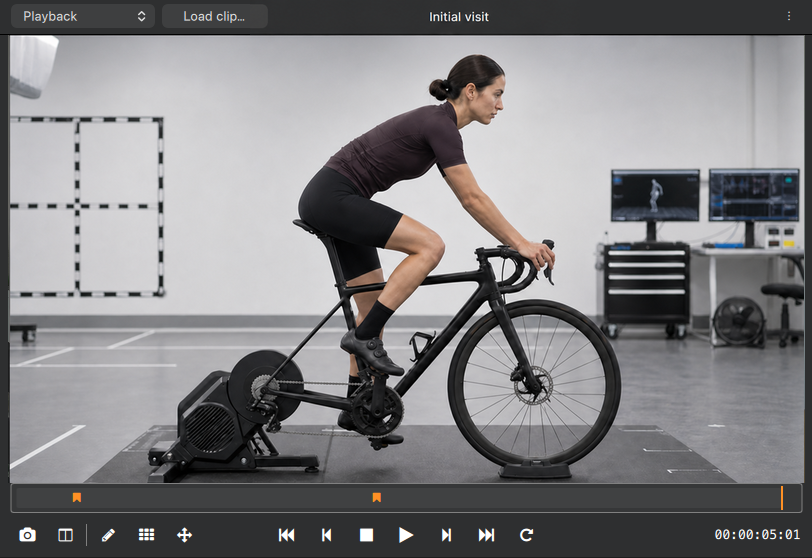
- Playback Playback panel supports the playback of video and captured frames as well as a side-by-side comparison of snapshots.
- Load Clip
- Snapshot
- A/B Comparison
- Marker
- Guides
- Rulers
- Playback controls
- Snapshot markers
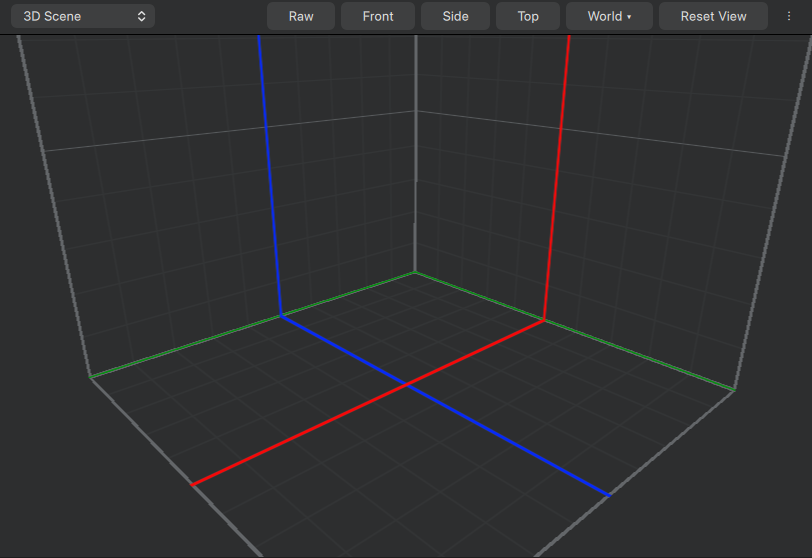
- 3D View (for plugin enabled workflows) For plugins that deliver 3d pose data (see developer docs) this panel will be available, otherwise it won't be shown in the dropdown. Currently only coco17 joint's are displayable in the 3d scene for pose rendering.
- Pose estimation metric display (Avg/Raw)
- View presets
- Reset View
- Axis Configuration
- Spreadsheet
- Tags
- Group by tag
- Pose estimation metric display (Avg/Raw)
- Load Clip +
- Device(s)

2. Drawer
This region of the session holds all captured media, tools & inputs to functionality within the scene, and general notes of the session. We'll cover each next.
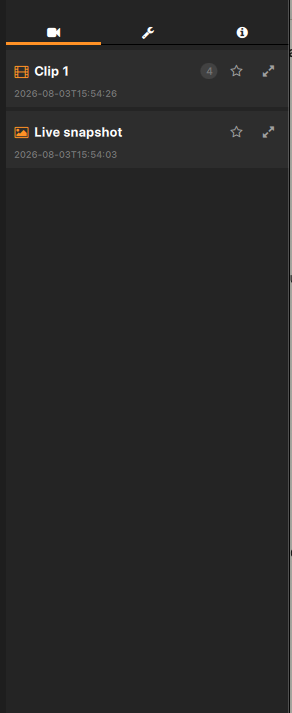
Panel Types- Captures
- By starring the clip (selecting it as a favorite), it will show up more prominently in the client result browser.
- Expanding the clip will open a browser to the captured artifacts of that clip.
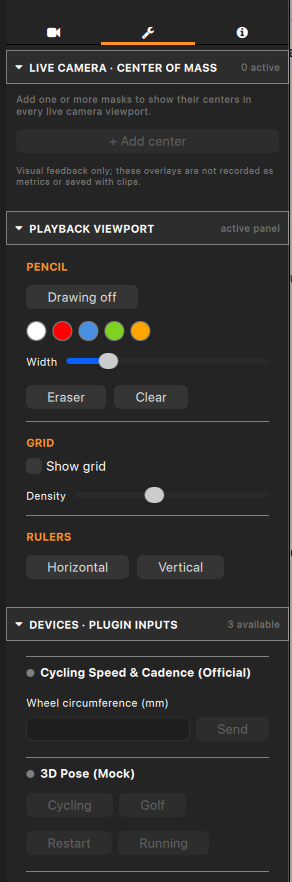
- Tools
- Center of mass indicator At the moment we support Human and Bike segmentation where a dot will be displayed for the averaged CoM over the past few frames. Please reach out if you would like to see other options available for segmentation.
- Playback guides/drawing tool modifiers The playback view supports overlays in which can be useful when comparing before/after situations. Here you'll find canvas controls for brushes and guides.
- Device Inputs If authoring custom BLE devices inputs to those loaded devices will show here which includes a range of inputs from buttons to text input.
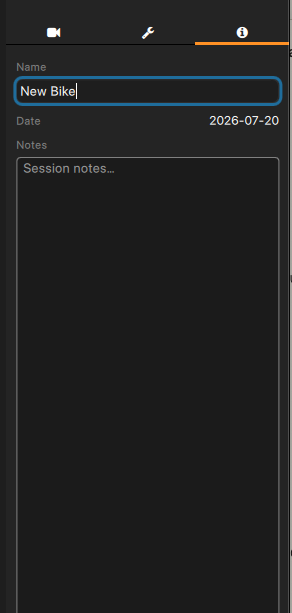
- Session metadata/info
3. Session Control
- Setup
- Capture
- Stop & Save
- Discard
- End Session
- Show/Hide Drawer